
The event schedule allows the players to view the manner of their match and its details such as the date and time and the name of their opponent.
You'll have the option to select the way you would like to schedule your matches - Match Sheet or Order of Play.
Each scheduling format enables you to let your players know the time and place of their match in a slightly different way. To access this feature you'll click on the Manage (gear icon) option that is found within the Event Desk.
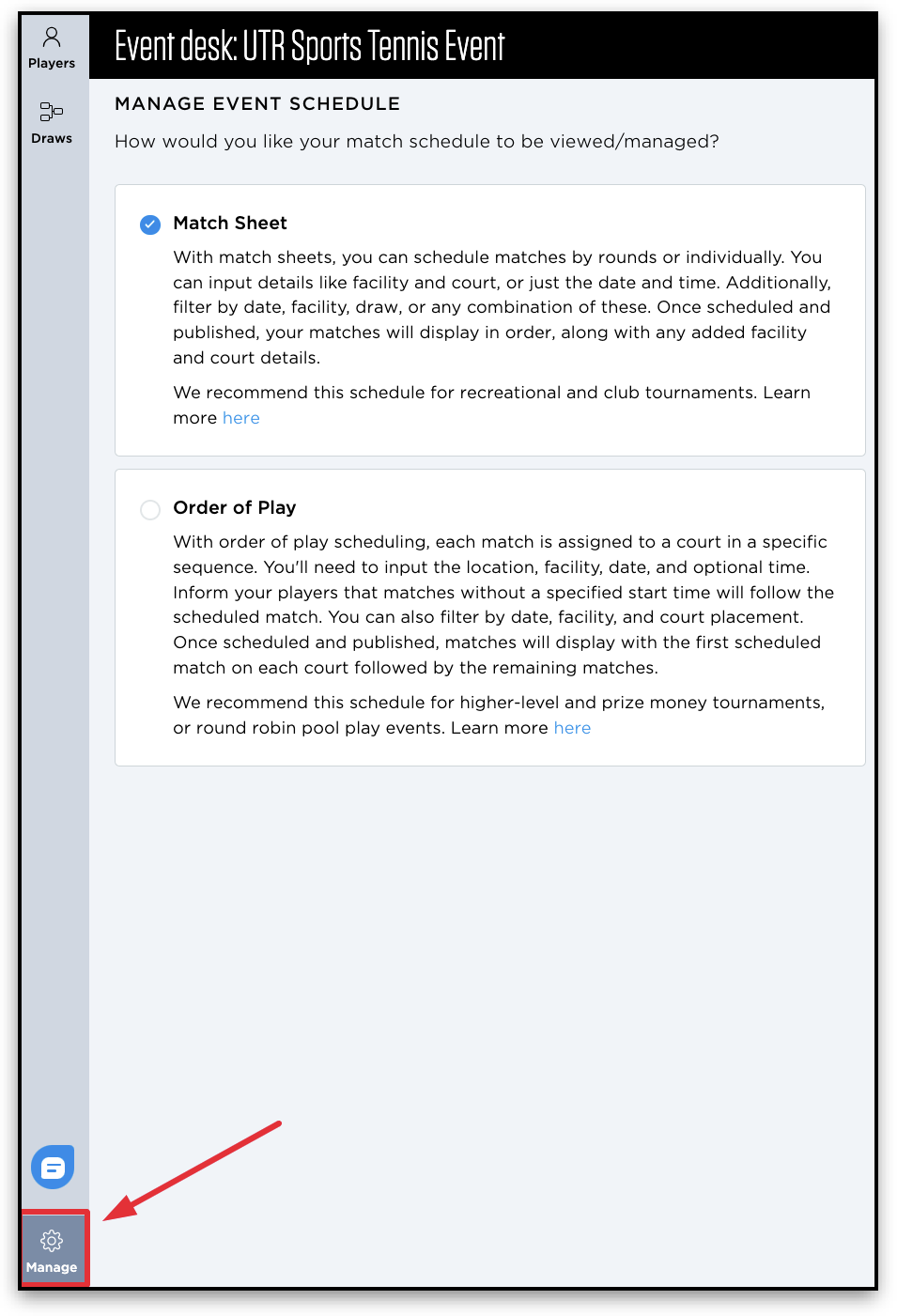
Match Sheet is the scheduling format that is selected by default when you create your event. We find this scheduling format to be best for recreational and club tournament play.
You can schedule by round and individual matches. Additionally, you have the flexibility to input specifics such as facility and/or court or simply add the date and time. You can also filter it by:
- Date
- Facility
- Draw
- Any combination listed above
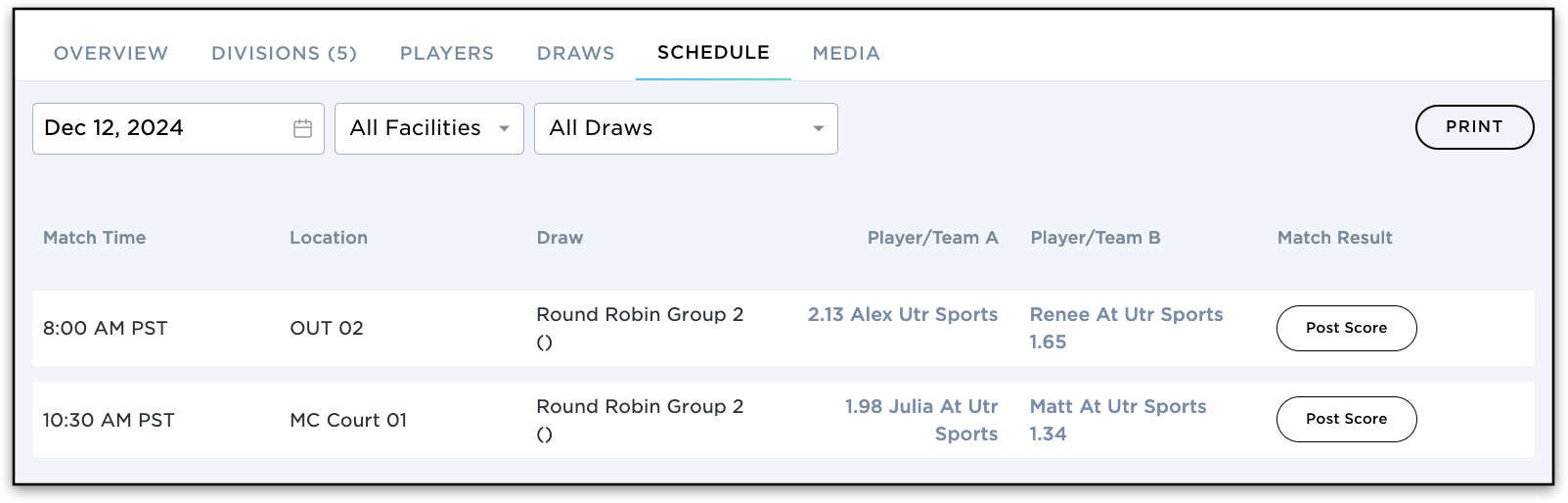
Once all of your matches and rounds are scheduled and you publish them to your event page you'll notice that they will display in order of matches with any facility and court detail you add.
Order of Play needs to be manually selected to utilize this scheduling format. We find this scheduling format to be best for higher-level and prize-money tournaments.
When using Order of Play, organizers can also include details such as match location, facility, date and optional start times. Matches without a specific start time will follow the scheduled order on each court.
For a more detailed guide on setting up and managing Order of Play, please refer to the article below:
Pro Tip: If you choose to switch from the Order of Play format to the Match Sheet format it will clear all of your matches out of the draw.
HOW CAN I PRINT MY SCHEDULE OF PLAY?
From the Event Desk, choose which draw you’d like to print then click “Schedule”. To print, right-click on your mouse and click "Print."

From the Draws tab of your event page, click the “Print” icon on the right side. To print, right-click on your mouse and click "Print."

Pro Tip: Draws must be published in order to print a Schedule of Play.
Related Articles: